
To create an Instaspin Casino account, open the registration form in your browser and complete the requested personal details. The guide also explains how to access your new account for the first time, complete identity checks and address common login or registration difficulties.
Casino gaming and sports betting are available through a single account, which can be accessed from either a desktop or mobile browser. Instaspin does not provide a dedicated application, so no app installation is required.
| Account Function | Access Point | Required Data / Credentials |
|---|---|---|
| Registration | Sign-up form | Full name, email address, password, account currency |
| Login | Casino login page | Registered email or username, password |
| Mobile Login | Mobile browser login | Account email, password, mobile internet access |
| Password Reset | Forgot Password section | Registered email, password reset link |
| Identity Verification | Account verification / KYC section | Government-issued ID, proof of address if requested |
| Two-Factor Authentication | Account security settings | Authenticator app or SMS code, recovery method |






Registration Eligibility and Information Needed to Join
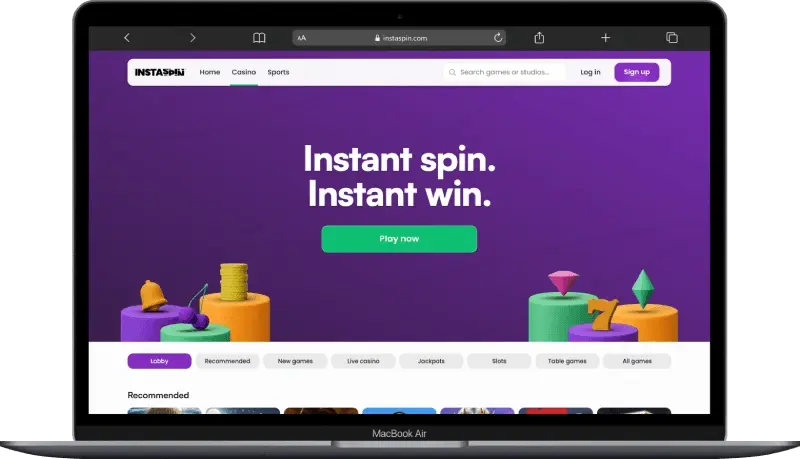
Before you register, make sure you are legally permitted to gamble where you live and can provide accurate personal information. The Netherlands is among our restricted countries, so you should not register from there.
Use contact details you can access yourself. If we ask you to confirm a contact method or verify your identity, access to those details and matching documents will help you complete the request.
Starting the Sign-Up Process on Instaspin
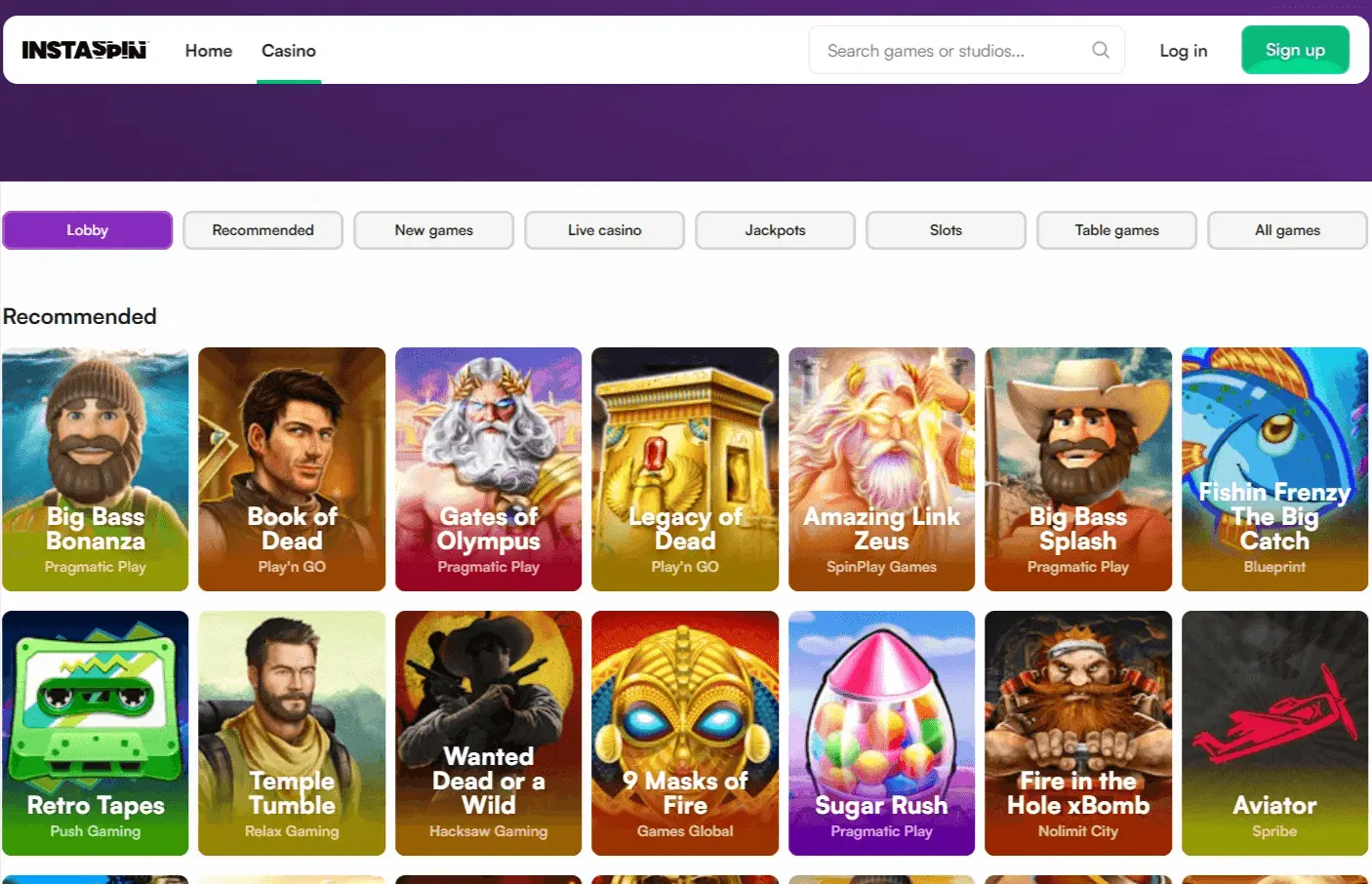
Open our registration form in your browser and work through the fields in order. The steps below take you from opening the form to reviewing your account after your first login.
Follow these seven steps in sequence to register and reach your account. Confirmation and verification actions apply when we request them during or after registration.
- Step 1 — Open registration — Open our service in a desktop or mobile browser and select the registration option. Use the browser rather than looking for an app, because we do not offer a dedicated one.
- Step 2 — Complete the form — Enter the requested personal and contact details accurately, then choose your login credentials. Compare your entries with your identity documents and correct any typing errors before proceeding.
- Step 3 — Confirm your contact method — If we request email or phone confirmation, open the message sent to the contact method you supplied and follow its instructions. Keep access to that contact method for future account communication.
- Step 4 — Accept the terms — Read the account terms presented during registration and accept them if you agree. Complete the form submission as directed, and retain your credentials securely for your first login.
- Step 5 — Sign in — Open the login form in your browser and enter the credentials you created. If they are rejected, check your entries before using the password-reset option or contacting us.
- Step 6 — Review your profile — Once signed in, review your personal and contact details in the account area. Correct an editable mistake or ask us for help if you cannot change the affected field.
- Step 7 — Review security and verification — Look for account security controls and complete any identity request we present. If two-factor authentication is offered, follow its setup instructions and protect the associated recovery method.
Entering Personal Details in the Registration Form
Enter your details as they appear on your identity documents. Review spelling and dates before submitting the form; a mismatch can make a later identity check harder to resolve.
Creating Login Credentials and Confirming Account Terms
Choose a unique password and keep it private. Read the account terms presented during registration before accepting them, and retain access to the contact method you provide for account recovery.
Account Confirmation and Identity Verification Steps
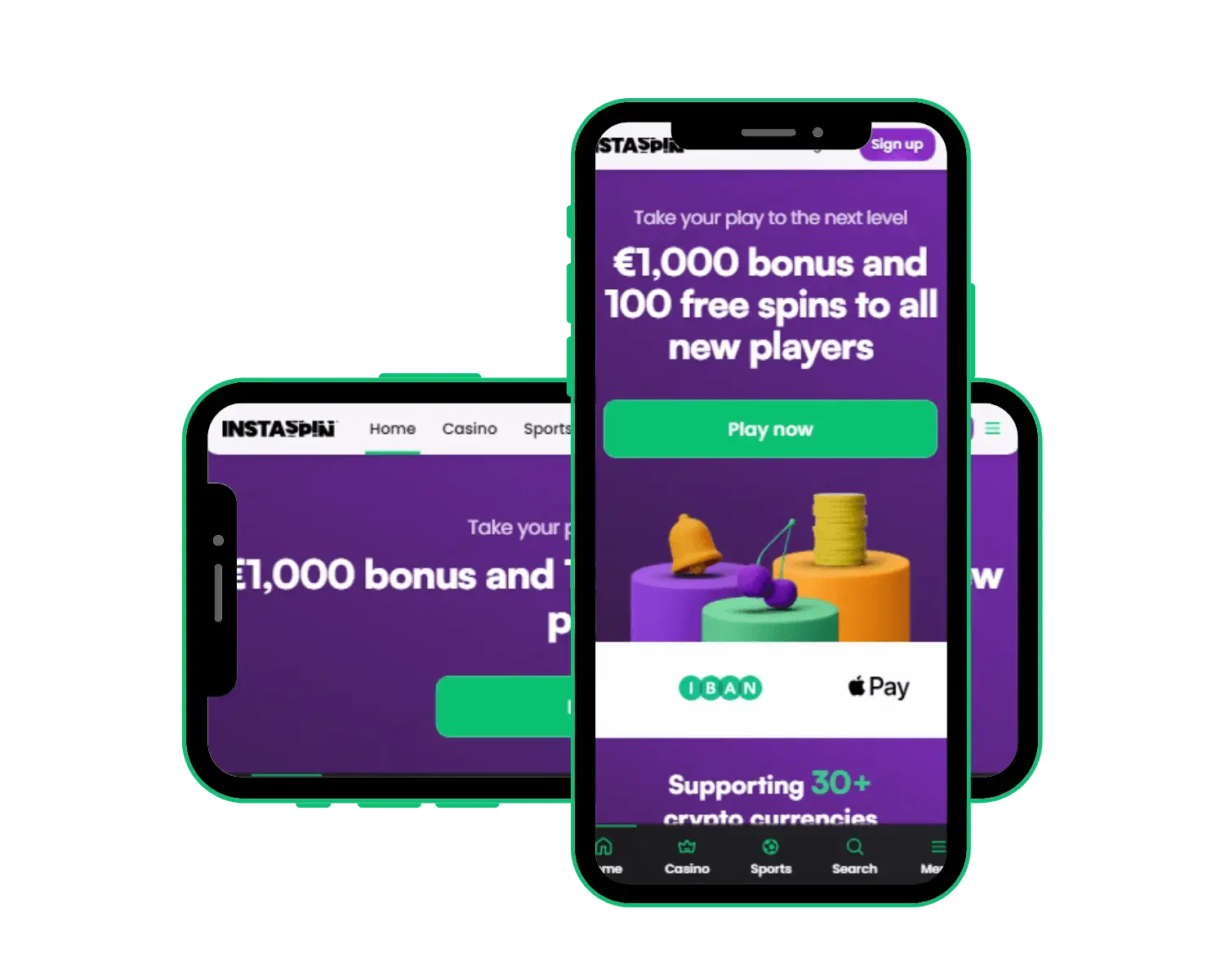
If we send a confirmation message, follow its instructions using the contact method you supplied. A confirmation message establishes access to that contact method; it is not necessarily the same as an identity check.
If we request identity documents, submit the documents specified in our request through the route we provide. Make sure the images are legible and the details match your account; do not send documents to an unverified recipient.
If a request is unclear or you cannot provide a document, contact us at support@instaspins-casino.nl and explain which part you cannot complete. We can address the request without you creating another profile.
First Login and Access to the Player Dashboard
Once you have completed the registration and any confirmation requested, open the login form and enter your credentials. Use the same account for our casino and sportsbook rather than registering separately for each service.
On a phone or tablet, open our service in your mobile browser and use the same login details. Because we do not have a dedicated app, you do not need to install one to access your account.
Completing Your Profile and Reviewing Account Settings
After signing in, review the personal and contact information shown in your account. Correct an obvious entry error through the available account controls, or ask us for help if the field cannot be edited.
Keep your login email accessible: it may be needed to receive account messages or recover access. If you need to change it and cannot do so in your profile, contact us from your existing account contact address and explain the change.
Security Measures for Newly Created Accounts
Protect your account before using it on a shared or mobile device. Our security habits below focus on keeping credentials private, maintaining recovery access and reducing the chance of an avoidable lockout.
If your account settings offer two-factor authentication, follow the setup instructions and keep any recovery method secure. A second factor adds a separate authentication step; do not assume it is enabled until setup is complete.
These habits help you retain access while limiting opportunities for someone else to sign in. Apply them to your browser, contact details and any supported authentication method.
- Use a unique password — Choose a password you do not use elsewhere, so a breach of another service does not expose your account credentials.
- Protect recovery access — Keep your account email accessible and secure, because losing access to it can make password recovery and account communication harder.
- Enable a second factor if offered — Use two-factor authentication in account settings if it is available, and store its recovery method somewhere other people cannot access.
- Sign out on shared devices — Log out when you finish on a shared phone or computer, and avoid saving your credentials in its browser.
- Keep authentication codes private — Do not share your password or one-time codes with anyone, including someone claiming to be acting on our behalf.
Registration Limits, Duplicate Profiles and Restricted Access
Use your existing account if you have already registered with us. If you cannot access it, try the recovery route or contact support instead of opening another profile to bypass the problem.
Access can also depend on where you are located and whether you can complete a requested account check. We list the Netherlands among restricted countries; do not attempt to bypass a location restriction.
Resolving Form Errors and Account Activation Problems
When a form rejects an entry, read the message beside the affected field and correct that entry before submitting again. For a login or activation problem, use the matching fix below rather than repeatedly submitting unchanged details.
If the problem persists, tell us what you were trying to do and the error message you saw. Contact support@instaspins-casino.nl without including your password or a one-time authentication code.
Use these targeted fixes for common registration and login problems. If a fix does not resolve the issue, tell us the exact error without sharing your password.
- Forgotten password — Open the login form, select the password-reset option and follow the recovery instructions sent through the account contact method.
- Incorrect login details — Re-enter your credentials carefully, checking capital letters and any saved password; use password recovery if you still cannot sign in.
- Confirmation message missing — Check the contact details you entered and your email spam folder, then ask us for help if the message remains missing.
- Registration field rejected — Read the field-specific error, correct the format or inaccurate entry, and submit the form again without changing unrelated details.
- Account locked or activation stalled — Stop repeated login attempts and contact us with the displayed error and your account contact details; do not create another profile.